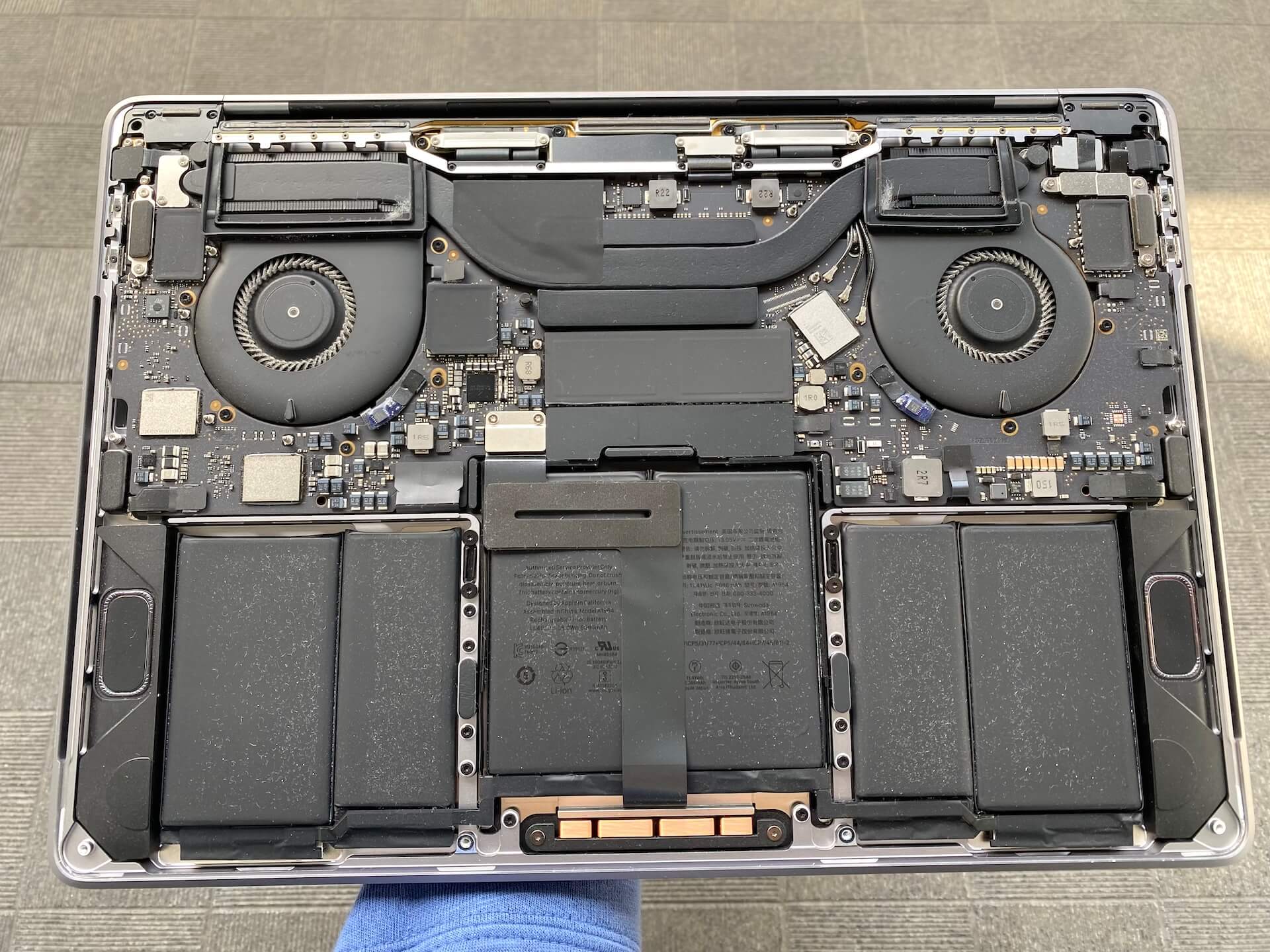
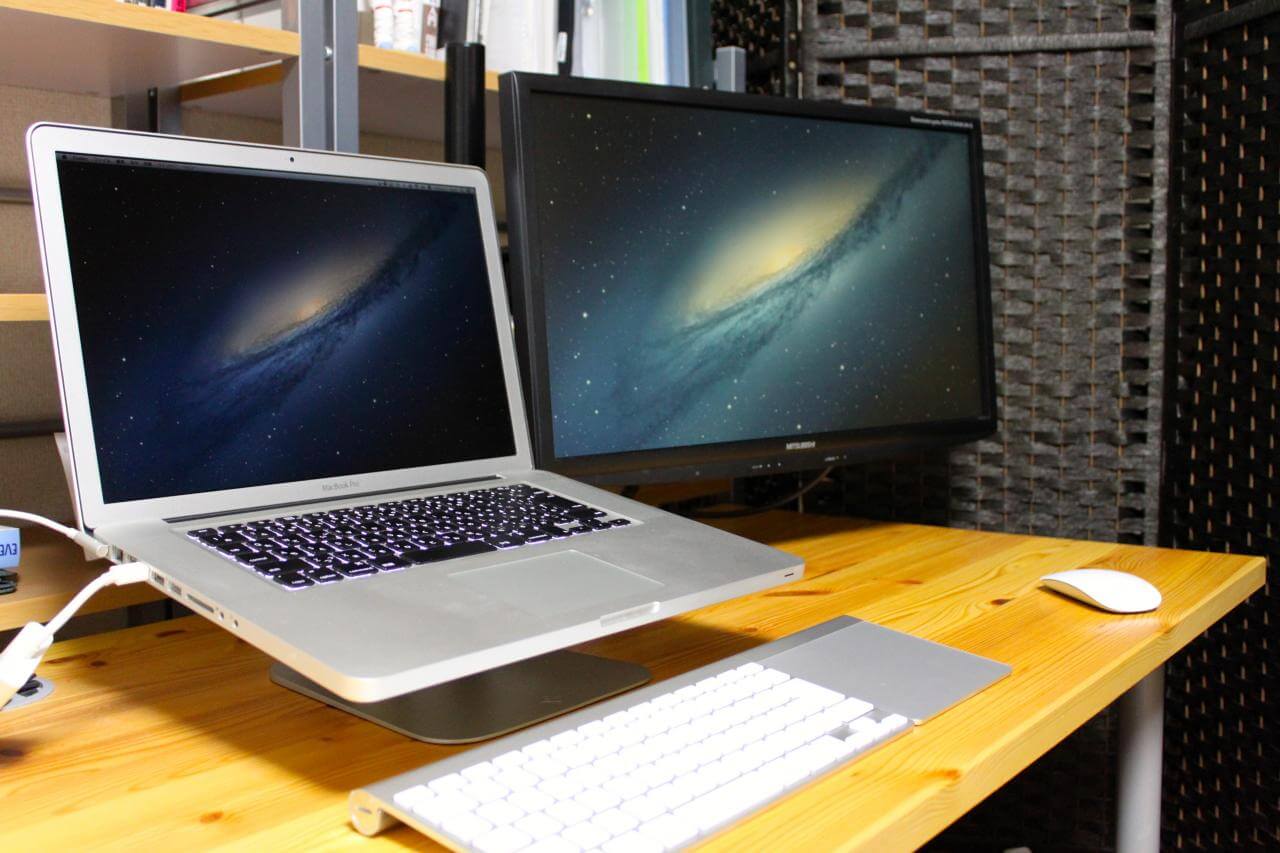
MacBook Proを買って、
ちょくちょく外に持ち出すこともあったりして、
今まではバスタオルにくるんでたんだけど、
それだとちょっとかさばるので、
インナーケースを購入しました。

正確には、先日誕生日だったので買ってもらいました。
(まぁ経費扱いにするけど。)


20110915_001

レインドロップっていう柄らしいです。

ほんとはもっとドットの細かい柄にしたかったんだけど、
横から入れるタイプのやつにはないみたい。


20110915_002

横側面から入れます。

縦入れもあるみたいだけど、
入れにくくないのかな、
どうなんだろ?


楽天で送料無料で4200円。

BUILT NY スリーブ for MacBook Pro 15インチ(ビルト・A4ワイド・ラップトップ):パサージュショップ

AssistOnには縦入れタイプもあります。

AssistOn / BUILT "Laptop Sleeve"


まだこれ持ってお出かけしてないんだよね…。
腰痛くてさ…。

早くお出かけしてーよー。

メインマシンの Core2Duo な MacBook 白 が遅く感じ始めたのと、
今 Mac を買うと無償で Lion にアップグレードできるのと、
個人事業を始めて経費に計上しやすいこともあり、
Core i7 (Sandy Bridge) な MacBook Pro を整備済製品で購入しました。

メインマシンの買い替えは2007年12月に MacBook Pro を買って以来だから、
約3年半ぶりです。

どうのこうの » そういえばMacBook買った


スペックは下記の通り。

アップル – ノートパソコン – MacBook Pro – 15インチモデルの技術仕様。

モデル:15-inch Early 2011
CPU:Core i7 2.2GHz
メモリ:8GB
グラフィック:Intel HD Graphics 3000(384MB DDR3 SDRAMをメインメモリと共有)、AMD Radeon HD 6750M(1GB GDDR5メモリ)
HDD:750GB
その他:高解像度非光沢ディスプレイ


20110626_001

じゃーん。
荷物が届きました!


20110626_002

パカッ。
整備済製品って、梱包が簡単なのね。


20110626_003

取り出してみた。
これがユニボディかぁ。


20110626_004

パカッ。


20110626_005

机に設置してみた。

高解像度はやっぱりいいですね。
画面が広いといろいろ捗ります。

速度的にはどうなんだろ。
いまいち実感がわからないけど、多分速いんだと思う。
MacBook 白 を買ったときも同じことを思ってたっぽい。)

とりあえず、低スペックでも動作するので評判のサドンアタックは快適に動いた。
まぁ、MacBook 白 でも普通に動いてたけど。

ネットサーフィン程度なら、
CPU の使用率は 5〜10% くらいで、
メモリの使用率は 1/3 くらい。

こりゃ、快適っすわー。

NEC のサーバーを買ったので、
ベンチマークしてみました。

ついでに VPS とか Mac のベンチマークもしてみました。

参考 : Linuxでベンチマーク – superπ/姫野ベンチ編 | データセンターの専用サーバ データセンターダイレクト ブログ
 

確認したマシンたち

CPU とメモリは cpuinfo とmeminfo で調べました。

CentOS の場合

# cat /proc/cpuinfo ← CPUの情報を表示
# cat /proc/meminfo ← メモリの情報を表示

Mac の場合

$ sysctl -a | grep cpu ← CPUの情報を表示
$ sysctl -a | grep mem ← メモリの情報を表示

以下、確認したマシンのスペック。


NEC Express5800/S70 タイプRB

CPU : Intel(R) Pentium(R) CPU G6950 @ 2.80GHz
メモリ : 6GB(2GB + 2GB + 1GB + 1GB)
参考 : 仕様:S70 タイプRB | NEC


Dell PowerEdge 430

CPU : Intel(R) Pentium(R) D CPU 2.80GHz
メモリ : 1GB(512MB + 512MB)
参考 : PowerEdge SC430 製品詳細 | Dell 日本


MacBook (Late 2007)

CPU : Intel(R) Core(TM)2 Duo CPU T7500 @ 2.20GHz
メモリ : 4GB(2GB + 2GB)
参考 : MacBook (Late 2007) – Technical Specifications


さくらのVPS

CPU : Intel(R) Core(TM)2 Duo CPU T7700 @ 2.40GHz
メモリ : 512MB
参考 : さくらのVPS|VPS(仮想専用サーバ)はさくらインターネット


ServersMan@VPS(Entryプラン)

CPU : Intel(R) Xeon(R) CPU L5520 @ 2.27GHz
メモリ : 768MB
参考 : ServersMan@VPS|仮想専用サーバ|月額490円~、初期&2ヶ月完全無料


superπでベンチマークする方法

下記からsupperπをダウンロードして、
解凍して、実行するだけ。

ftp://pi.super-computing.org/ の一覧

# mkdir supper_pi
# cd supper_pi
# wget ftp://pi.super-computing.org/Linux_jp/super_pi-jp.tar.gz
# tar zxvf super_pi-jp.tar.gz
# ./supper_pi
 Version 2.0 of the super_pi for Linux OS
 Fortran source program was translated into C program with version 19981204 of
 f2c, then generated C source program was optimized manually.
 pgcc 3.2-3 with compile option of "-fast -tp px -Mbuiltin -Minline=size:1000 -Mnoframe -Mnobounds -Mcache_align -Mdalign -Mnoreentrant" was used for the
 compilation.
 ------ Started super_pi run : 2011年 2月 1日 火曜日 20:56:51 JST
 Parameter(%i) to super_pi is missing. Parameter value ? 20 ← 20 を入力(20 = 104 万桁)


姫野ベンチでベンチマークする方法

下記から C, static allocate version の M をダウンロードして、
解凍して、リネームして、make して、実行する。
(なんでリネームするんだろ……。)

ダウンロード (ソース & 実行形式(Win/Mac 用))|HPC High Performance Computing|ACCC. RIKEN

# mkdir himeno
# cd himeno
# wget http://accc.riken.jp/assets/files/himenob_loadmodule/cc_himenoBMTxp_m.lzh
# lha e cc_himenoBMTxp_m.lzh
# mv himenobmtxps.c himenoBMTxps.c
# make
# ./bmt

lha(lzhを解凍するコマンド)がない場合は、
yum か rpm でインストールする。

yum の場合。

# yum search lha
# yum -y install lha
# whereis lha
lha: /usr/bin/lha

rpm の場合。
下記から合ったものをダウンロードしてインストール。

Index of /lha

# wget http://packages.sw.be/lha/lha-1.14i-19.2.2.el5.rf.i386.rpm
# rpm -ivh lha-1.14i-19.2.2.el5.rf.i386.rpm
# whereis lha
lha: /usr/bin/lha


supperπの結果

NEC Express5800/S70 タイプRB

 Version 2.0 of the super_pi for Linux OS
 Fortran source program was translated into C program with version 19981204 of
 f2c, then generated C source program was optimized manually.
 pgcc 3.2-3 with compile option of "-fast -tp px -Mbuiltin -Minline=size:1000 -Mnoframe -Mnobounds -Mcache_align -Mdalign -Mnoreentrant" was used for the
 compilation.
 ------ Started super_pi run : 2011年 2月 1日 火曜日 20:56:51 JST
 Parameter(%i) to super_pi is missing. Parameter value ? 20
 Start of PI calculation up to 1048576 decimal digits
 End of initialization. Time=       0.204 Sec.
 I= 1 L=       0        Time=       0.588 Sec.
 I= 2 L=       0        Time=       0.674 Sec.
 I= 3 L=       1        Time=       0.674 Sec.
 I= 4 L=       2        Time=       0.676 Sec.
 I= 5 L=       5        Time=       0.675 Sec.
 I= 6 L=      10        Time=       0.674 Sec.
 I= 7 L=      21        Time=       0.675 Sec.
 I= 8 L=      43        Time=       0.675 Sec.
 I= 9 L=      87        Time=       0.675 Sec.
 I=10 L=     174        Time=       0.675 Sec.
 I=11 L=     349        Time=       0.675 Sec.
 I=12 L=     698        Time=       0.674 Sec.
 I=13 L=    1396        Time=       0.675 Sec.
 I=14 L=    2794        Time=       0.671 Sec.
 I=15 L=    5588        Time=       0.670 Sec.
 I=16 L=   11176        Time=       0.666 Sec.
 I=17 L=   22353        Time=       0.655 Sec.
 I=18 L=   44707        Time=       0.634 Sec.
 I=19 L=   89415        Time=       0.590 Sec.
 End of main loop
 End of calculation.    Time=      13.291 Sec.
 End of data output.    Time=       0.067 Sec.
 Total calculation(I/O) time=      13.358(       0.558) Sec.
 ------ Ended super_pi run : 2011年 2月 1日 火曜日 20:57:06 JST

Dell PowerEdge 430

 Version 2.0 of the super_pi for Linux OS
 Fortran source program was translated into C program with version 19981204 of
 f2c, then generated C source program was optimized manually.
 pgcc 3.2-3 with compile option of "-fast -tp px -Mbuiltin -Minline=size:1000 -Mnoframe -Mnobounds -Mcache_align -Mdalign -Mnoreentrant" was used for the
 compilation.
 ------ Started super_pi run : 2011年 2月 1日 火曜日 20:17:58 JST
 Parameter(%i) to super_pi is missing. Parameter value ? 20
 Start of PI calculation up to 1048576 decimal digits
 End of initialization. Time=       0.452 Sec.
 I= 1 L=       0        Time=       1.358 Sec.
 I= 2 L=       0        Time=       1.543 Sec.
 I= 3 L=       1        Time=       1.539 Sec.
 I= 4 L=       2        Time=       1.557 Sec.
 I= 5 L=       5        Time=       1.546 Sec.
 I= 6 L=      10        Time=       1.538 Sec.
 I= 7 L=      21        Time=       1.537 Sec.
 I= 8 L=      43        Time=       1.536 Sec.
 I= 9 L=      87        Time=       1.536 Sec.
 I=10 L=     174        Time=       1.554 Sec.
 I=11 L=     349        Time=       1.541 Sec.
 I=12 L=     698        Time=       1.538 Sec.
 I=13 L=    1396        Time=       1.545 Sec.
 I=14 L=    2794        Time=       1.539 Sec.
 I=15 L=    5588        Time=       1.533 Sec.
 I=16 L=   11176        Time=       1.522 Sec.
 I=17 L=   22353        Time=       1.497 Sec.
 I=18 L=   44707        Time=       1.437 Sec.
 I=19 L=   89415        Time=       1.339 Sec.
 End of main loop
 End of calculation.    Time=      30.382 Sec.
 End of data output.    Time=       0.197 Sec.
 Total calculation(I/O) time=      30.579(       1.017) Sec.
 ------ Ended super_pi run : 2011年 2月 1日 火曜日 20:18:30 JST

MacBook (Late 2007)

 Version 2.0 of the super_pi for Mac OS/X
 Fortran source program was translated into C program with version 19981204 of
 f2c, then generated C source program was optimized manually.
 gcc-3.2.2 with compile option of "-O3 -ffast-math -finline-limit=1000" was used
 for the compilation.
 ------ Started super_pi run : 2011年 2月 1日 火曜日 19時35分52秒 JST
 Parameter(%i) to super_pi is missing. Parameter value ? 20
 Start of PI calculation up to 1048576 decimal digits
 End of initialization. Time=       0.496 Sec.
 I= 1 L=       0        Time=       1.252 Sec.
 I= 2 L=       0        Time=       1.406 Sec.
 I= 3 L=       1        Time=       1.399 Sec.
 I= 4 L=       2        Time=       1.395 Sec.
 I= 5 L=       5        Time=       1.396 Sec.
 I= 6 L=      10        Time=       1.389 Sec.
 I= 7 L=      21        Time=       1.391 Sec.
 I= 8 L=      43        Time=       1.387 Sec.
 I= 9 L=      87        Time=       1.388 Sec.
 I=10 L=     174        Time=       1.394 Sec.
 I=11 L=     349        Time=       1.383 Sec.
 I=12 L=     698        Time=       1.378 Sec.
 I=13 L=    1396        Time=       1.391 Sec.
 I=14 L=    2794        Time=       1.377 Sec.
 I=15 L=    5588        Time=       1.467 Sec.
 I=16 L=   11176        Time=       1.394 Sec.
 I=17 L=   22353        Time=       1.336 Sec.
 I=18 L=   44707        Time=       1.295 Sec.
 I=19 L=   89415        Time=       1.206 Sec.
 End of main loop
 End of calculation.    Time=      27.604 Sec.
 End of data output.    Time=       0.255 Sec.
 Total calculation(I/O) time=      27.858(       2.727) Sec.
 ------ Ended super_pi run : 2011年 2月 1日 火曜日 19時36分26秒 JST

さくらのVPS

 Version 2.0 of the super_pi for Linux OS
 Fortran source program was translated into C program with version 19981204 of
 f2c, then generated C source program was optimized manually.
 pgcc 3.2-3 with compile option of "-fast -tp px -Mbuiltin -Minline=size:1000 -Mnoframe -Mnobounds -Mcache_align -Mdalign -Mnoreentrant" was used for the
 compilation.
 ------ Started super_pi run : 2011年 2月 1日 火曜日 20:18:26 JST
 Parameter(%i) to super_pi is missing. Parameter value ? 20
 Start of PI calculation up to 1048576 decimal digits
 End of initialization. Time=       0.271 Sec.
 I= 1 L=       0        Time=       0.740 Sec.
 I= 2 L=       0        Time=       0.798 Sec.
 I= 3 L=       1        Time=       0.772 Sec.
 I= 4 L=       2        Time=       0.878 Sec.
 I= 5 L=       5        Time=       0.798 Sec.
 I= 6 L=      10        Time=       0.742 Sec.
 I= 7 L=      21        Time=       0.692 Sec.
 I= 8 L=      43        Time=       0.695 Sec.
 I= 9 L=      87        Time=       0.679 Sec.
 I=10 L=     174        Time=       0.682 Sec.
 I=11 L=     349        Time=       0.700 Sec.
 I=12 L=     698        Time=       0.729 Sec.
 I=13 L=    1396        Time=       0.722 Sec.
 I=14 L=    2794        Time=       0.707 Sec.
 I=15 L=    5588        Time=       0.709 Sec.
 I=16 L=   11176        Time=       0.698 Sec.
 I=17 L=   22353        Time=       0.668 Sec.
 I=18 L=   44707        Time=       0.659 Sec.
 I=19 L=   89415        Time=       0.617 Sec.
 End of main loop
 End of calculation.    Time=      14.499 Sec.
 End of data output.    Time=       0.078 Sec.
 Total calculation(I/O) time=      14.577(       0.613) Sec.
 ------ Ended super_pi run : 2011年 2月 1日 火曜日 20:18:42 JST

ServersMan@VPS(Entryプラン)

 Version 2.0 of the super_pi for Linux OS
 Fortran source program was translated into C program with version 19981204 of
 f2c, then generated C source program was optimized manually.
 pgcc 3.2-3 with compile option of "-fast -tp px -Mbuiltin -Minline=size:1000 -Mnoframe -Mnobounds -Mcache_align -Mdalign -Mnoreentrant" was used for the
 compilation.
 ------ Started super_pi run : 2011年 2月 1日 火曜日 20:18:56 JST
 Parameter(%i) to super_pi is missing. Parameter value ? 20
 Start of PI calculation up to 1048576 decimal digits
 End of initialization. Time=       0.364 Sec.
 I= 1 L=       0        Time=       1.059 Sec.
 I= 2 L=       0        Time=       1.225 Sec.
 I= 3 L=       1        Time=       1.271 Sec.
 I= 4 L=       2        Time=       1.327 Sec.
 I= 5 L=       5        Time=       1.287 Sec.
 I= 6 L=      10        Time=       1.267 Sec.
 I= 7 L=      21        Time=       1.248 Sec.
 I= 8 L=      43        Time=       1.261 Sec.
 I= 9 L=      87        Time=       1.298 Sec.
 I=10 L=     174        Time=       1.320 Sec.
 I=11 L=     349        Time=       1.259 Sec.
 I=12 L=     698        Time=       1.251 Sec.
 I=13 L=    1396        Time=       1.265 Sec.
 I=14 L=    2794        Time=       1.231 Sec.
 I=15 L=    5588        Time=       1.222 Sec.
 I=16 L=   11176        Time=       1.241 Sec.
 I=17 L=   22353        Time=       1.288 Sec.
 I=18 L=   44707        Time=       1.158 Sec.
 I=19 L=   89415        Time=       1.091 Sec.
 End of main loop
 End of calculation.    Time=      24.936 Sec.
 End of data output.    Time=       0.149 Sec.
 Total calculation(I/O) time=      25.085(       1.269) Sec.
 ------ Ended super_pi run : 2011年 2月 1日 火曜日 20:19:28 JST


Total calculation time が早い方がいいんだよね、多分。

ってことで、

1位 : NEC Express5800/S70 タイプRB → 13.358秒
2位 : さくらのVPS → 14.577秒
3位 : ServersMan@VPS(Entryプラン) → 25.085秒
4位 : MacBook (Late 2007) → 27.858秒
5位 : Dell PowerEdge 430 → 30.579秒

という結果になりました。
MacBook が意外と遅いね。


姫野ベンチの結果

NEC Express5800/S70 タイプRB

mimax = 129 mjmax = 129 mkmax = 257
imax = 128 jmax = 128 kmax =256
 Start rehearsal measurement process.
 Measure the performance in 3 times.

 MFLOPS: 1133.231415 time(s): 0.362958 1.693779e-03

 Now, start the actual measurement process.
 The loop will be excuted in 495 times
 This will take about one minute.
 Wait for a while

 Loop executed for 495 times
 Gosa : 9.987461e-04
 MFLOPS measured : 1160.141740	cpu : 58.498923
 Score based on Pentium III 600MHz : 14.148070

Dell PowerEdge 430

mimax = 129 mjmax = 129 mkmax = 257
imax = 128 jmax = 128 kmax =256
 Start rehearsal measurement process.
 Measure the performance in 3 times.

 MFLOPS: 887.306594 time(s): 0.463555 1.693779e-03

 Now, start the actual measurement process.
 The loop will be excuted in 388 times
 This will take about one minute.
 Wait for a while

 Loop executed for 388 times
 Gosa : 1.071915e-03
 MFLOPS measured : 955.270751	cpu : 55.687660
 Score based on Pentium III 600MHz : 11.649643

MacBook (Late 2007)

mimax=  257  mjmax=  129  mkmax=  129
  imax=  256  jmax=  128  kmax=  128
  Start rehearsal measurement process.
  Measure the performance in 3 times.
   MFLOPS:  250.762   time(s):  1.64026  1.733593E-03
 Now, start the actual measurement process.
 The loop will be excuted in  109  times.
 This will take about one minute.
 Wait for a while.
  Loop executed for   109  times
  Gosa :  1.369256E-03
  MFLOPS:  251.219   time(s):  59.4877
  Score based on Pentium III 600MHz :  3.03259

さくらのVPS

mimax = 129 mjmax = 129 mkmax = 257
imax = 128 jmax = 128 kmax =256
 Start rehearsal measurement process.
 Measure the performance in 3 times.

 MFLOPS: 1096.811840 time(s): 0.375010 1.733593e-03

 Now, start the actual measurement process.
 The loop will be excuted in 479 times
 This will take about one minute.
 Wait for a while

 Loop executed for 479 times
 Gosa : 9.995485e-04
 MFLOPS measured : 1350.076831	cpu : 48.644165
 Score based on Pentium III 600MHz : 16.464352

ServersMan@VPS(Entryプラン)

mimax = 129 mjmax = 129 mkmax = 257
imax = 128 jmax = 128 kmax =256
 Start rehearsal measurement process.
 Measure the performance in 3 times.

 MFLOPS: 584.931168 time(s): 0.703186 1.693779e-03

 Now, start the actual measurement process.
 The loop will be excuted in 255 times
 This will take about one minute.
 Wait for a while

 Loop executed for 255 times
 Gosa : 1.184707e-03
 MFLOPS measured : 430.082239	cpu : 81.290987
 Score based on Pentium III 600MHz : 5.244905


見方が分かんないけど、
数値が大きい方がいいんだよね?

ってことで、

1位 : さくらのVPS
2位 : NEC Express5800/S70 タイプRB
3位 : Dell PowerEdge 430
4位 : ServersMan@VPS(Entryプラン)
5位 : MacBook (Late 2007)

という結果になりました。


っということは、
最近買った「NEC Express5800/S70 タイプRB」と「さくらのVPS」が、
ベンチマーク的に良い勝負ってことですね。

すげーな、さくらのVPS。

Mac から LAN 外の CentOS に VNC over SSH で接続するまでのメモ。

基本 SSH でいいんだけども、
実家のネットワークの CTU の設定を変更したいときに、
自宅のサーバーのブラウザを立ち上げたかったので。


VNC over SSH とは

VNC over SSH ってのは、
SSH のポートを通って VNC に接続するっていうことらしい。

VNC は通信が暗号化されてないから、
LAN 外のマシンに VNC 接続する場合は、
SSH のポートを通したほうが安全らしい。


環境

サーバー:
CentOS 5.5

クライアント:
MacOS 10.6 (Snow Leopard)

利用するアプリケーション:
Chicken of the VNC
→ Mac 用 VNCクライアント

SSH Tunnel Manager
→ SSH トンネルマネージャ(そのまんま)
※ライセンス書いてないけど、フリーで使っていいよね?


サーバー側の設定

以下、SSH は利用できる状態とします。

ちなみに、僕はSSHをパスワードでログインできる状態にしてるけど、
鍵方式でログインする場合はまたちょっと違うかも。

まずは VNC サーバーのインストールと設定。

# yum -y install vnc-server
# vi /etc/sysconfig/vncservers
# 以下の2行を追加
# Display番号が 1 、ユーザー名が username の場合
VNCSERVERS="1:username"
VNCSERVERARGS[1]="-geometry 800x600 -nolisten tcp -nohttpd"

VNC を利用するユーザーになって、
パスワードを設定。

# su username
# vncpasswd
Password: # パスワードを入力(SSHと同じである必要なし)
Verify: # パスワード再入力

VNC サーバーの起動。

# /etc/rc.d/init.d/vncserver start

VNC サーバーを起動すると、
VNC を利用するユーザーのディレクトリに設定ファイルができるので、
それを編集。

# vi /home/username/.vnc/xstartup
#twm & # ←をコメントアウト
gnome-session & # ←を追加

VNC サーバーを自動で起動するようにする。

# chkconfig vncserver on
# chkconfig --list vncserver
vncserver      	0:off	1:off	2:on	3:on	4:on	5:on	6:off


SSH Tunnel Manager の設定

SSH Tunnel Manager を起動。
preferences から設定を追加。

20110130_001

Name → 適当に
Login → SSHのログインユーザー名
Host → ホスト名
Port → SSHのポート番号

Local redirections の+ボタンクリック。

左から順に、
Port → 5901(VNCのポート番号)
LAN Host → localhost
Port → 5901(VNCのポート番号)
※なんでポート番号を2回入れるのかは分からない。
※「始まり」と「終わり」とかかなぁ。

設定が終わったら画面は閉じて、
さっき設定した設定名の再生ボタンを押す。

20110130_002

パスワードを聞かれるので、
SSHのパスワードを入力。

状態が Connected になればOK。


Chicken of the VNC の設定

Chicken of the VNC を起動。

20110130_003

Servers欄 → 適当に名前を付ける
Host → localhost
Display → 1(サーバー側で設定したディスプレイ番号)
Password → VNCユーザーのパスワード

Connect をクリックして、
サーバーのデスクトップが表示されれば完了。

20110130_004


以上。

LAN 外からサーバーのデスクトップが表示されるのは、
ちょっと感動します。
(僕だけ……?)

Macで社内サーバーに対してポートスキャンしたい

nmapっていうのをインストールすれば良いらしい。
MacPortでもインストールできるらしい

「Nmap」とは:ITpro

インストールしてみる

ということで、rootでログイン→セルフアップデート→ソフトウェア一覧の更新→nmapインストール。
セルフアップデートとソフトウェア一覧の更新は、それをする意味は良く分かってない。
しといた方がいいのかな、くらい。

tagawa-MacBook:~ tagawa$ sudo -s
bash-3.2# port -d selfupdate
bash-3.2# port -d sync
bash-3.2# port install nmap

nmapを使ってみる

bash-3.2# nmap -sT 10.0.1.2

のようにすれば良いみたい。

オプションは下記サイト参照っと。

nmap Command — Ray:雑学事典

メニューバーのアイコンを消す
http://mactips-lib.net/m/macosx/010.html


消せた!

すげー!!

うれしい!!!

Apple Mailがスパムメールをうまく判別してくれない。

とりあえず、下記を参考にトレーニングモードにしてみた。


Mail で迷惑メールを識別しやすくする


もっと頭よくなってくれないかなー、Apple Mail。

Apple Storeの店員さんって、
何種類かの色のTシャツを着てるんだけど、
色によって違いがあるのか、聞いてみた。

赤色

お客様対応スタッフ

青色

販売スタッフ

グレイ

技術スタッフ


だった気がする。
うろ覚え。

ちなみに、Tシャツの色はちょこちょこ変わるらしい。

先週、今週とApple Store Nagoya Sakaeに行ってきました。

Apple Store Nagoya Sakae
http://www.apple.com/jp/retail/nagoyasakae/

店員に嘘つかれた

AirMac Extreamを買うか、
AirMac Expressを買うか迷っていて、
店員にAirMac Extreamをお勧めされて、
「えーでも、AirMac ExtreamではAirTunesできないですよねぇ?」
って言ったら、
「できますよ、ここにジャックささります。」
って言われて、

会社戻って箱開けたら、
「ここ」って言ってた場所は、
電源のコードさす穴でした。

ちょっとイラッとした。

今後、Apple Storeの店員の言う事は信用しない。
自分を信じる事にします。


でも、AirMac Expressは802.11nに対応していないと思ってたけど、
今のやつは対応してるのね。
知らなかった。

店員さん、お願いだから、
自信がなかったら、他の店員さんに聞いてください。

お願いします。


【参考】
AirMac Extream
AirMac Express

今日までMacでバックスラッシュの入力方法を知りませんでした。

プログラマ失格ですね。

option + ¥

でした。

DWで見ると「¥」も「\」も「¥」を表示されます。
紛らわしすぎです。
このへんは、エディタによるんでしょうか。

DWでphpを書くのはどうなのでしょうか。
個人的には悪くない気がします。

DWでphpを書いていると、
DWでASを書いてる人を思い出します。

DWでASがありなら、DWでphpはありですよね。